

Privacy and compliance don’t stop once you’ve moved your measurement stack to Server-side Google Tag Manager (SGTM).
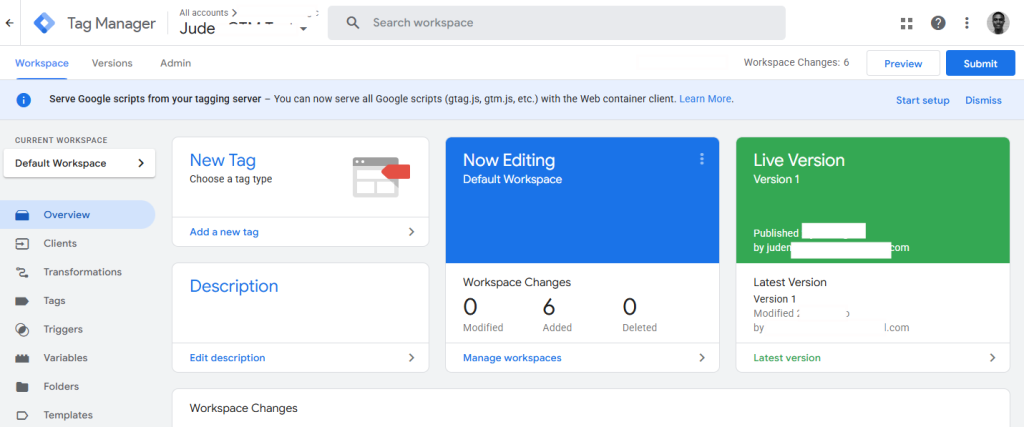
While routing data through your own tagging server gives you greater control over data collection and processing, you still need to ensure that every event respects the consent choices made by your users. This is especially important if you have visitors from the European Economic Area (EEA), where consent requirements continue to evolve and become more strictly enforced.
For Google-owned products such as Google Analytics and Google Ads, this is relatively straightforward. Google Consent Mode works natively with these platforms and automatically passes consent signals alongside requests sent to your server container.
The challenge begins when you’re working with non-Google platforms.
Think about implementations such as:
- Meta Conversions API
- TikTok Events API
- Reddit Conversion API
- Pinterest Conversion API
- LinkedIn Conversions API
These platforms don’t automatically understand Google’s consent signals, which means you’ll need a reliable way to interpret and apply consent decisions before forwarding data downstream.
To solve this problem, I built a Server-side GTM custom variable template called Basic GCS Consent State Reader.
In this article, I’ll walk through what the template does, how it works, and how you can use it to build more privacy-compliant server-side tagging implementations.
Before we begin, it’s worth mentioning that this article isn’t a guide to implementing Google Consent Mode itself, nor is it a walkthrough for debugging Consent Mode setups. I’ve covered those topics separately.
Instead, this blog post focuses on a server-side GTM custom variable template I created to solve a specific challenge: making Google Consent Mode’s GCS values easy to read and use inside Server-side GTM to ensure compliance with your data collection practices.
What Is the Basic GCS Consent State Reader?
If you work with Server-side Google Tag Manager and Google Consent Mode, you’ve probably seen values such as:
- G100
- G101
- G110
- G111
appear in incoming GA4 requests.
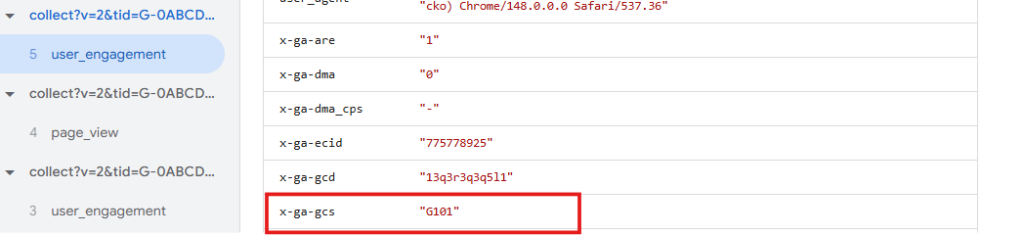
These values are known as GCS signals (Google Consent State signals).
They are compact consent strings sent by Google products whenever Consent Mode is enabled. The values represent a user’s consent choices for advertising and analytics-related storage.
The problem is that Google doesn’t provide a simple way to interpret these values directly inside Server-side GTM.
Unlike in the Web GTM container, you can’t simply use Google Tag Manager’s native preview UI or custom variable templates to decode the value or even write custom code.
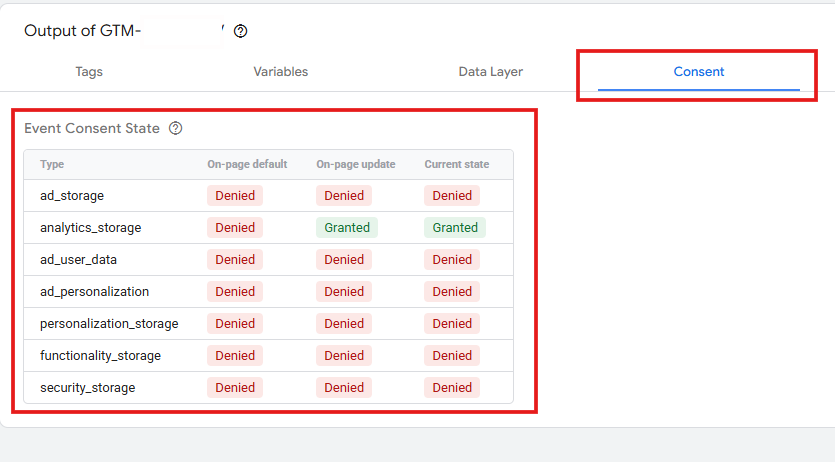
That’s where the Basic GCS Consent State Reader comes in.
The template reads the consent signal from incoming GA4 requests, evaluates the selected consent category, and returns a human-readable value:
- granted
- denied
- undefined
This makes it significantly easier to use consent information for:
- Tag firing logic
- Event enrichment compliance guardrails
- Vendor routing decisions
- Data transformation workflows
- Privacy and compliance controls
One feature I particularly like is the ability to define how missing consent values should be treated.
You can configure the template so that undefined consent is automatically interpreted as either:
- denied
- granted
This is especially useful in two kinds of scenarios,
One can be for organisations operating multiple websites or regional properties where some domains implement Consent Mode, and others do not, maybe because there is no need for that region.
Or to enforce a strict rule where consent mode configurations are missing by mistake and not intentionally made that way.
What Is a GCS Value?
Rather than explaining Google Consent Mode itself, let’s briefly look at what these values represent.
When a GA4 request is sent to your server container with Consent Mode enabled, it includes a parameter called:
x-ga-gcs
This parameter contains a compact consent string:
G1AB
Where:
- A = Advertising consent
- B = Analytics consent
Each value can be:
- 0 = denied
- 1 = granted
GCS Value Mapping
| GCS Value | Advertising | Analytics |
| G100 | denied | denied |
| G101 | denied | granted |
| G110 | granted | denied |
| G111 | granted | granted |
For example:
x-ga-gcs=G101means:
- Advertising consent = denied
- Analytics consent = granted
Why This Matters in Server-side GTM
Consent becomes even more important once data reaches your server container.
At this stage, you may want to:
- Block specific tags
- Prevent data forwarding to vendors
- Enrich events with consent information
- Route requests conditionally
- Remove advertising identifiers
- Maintain privacy-first data pipelines
The challenge is that Server-side GTM doesn’t provide a built-in variable for parsing GCS values. This might change in the future, but currently, many implementations rely on:
- Reading raw event data key path manually
- Creating lookup tables
- Using regex-based logic
- Building custom templates
While these approaches work, they often become difficult to maintain as projects grow.
The Basic GCS Consent State Reader simplifies this process by turning consent parsing into a reusable Server-side GTM variable.
What the GCS Consent State Reader Does
The template reads a GCS value from incoming event data and evaluates either:
- Analytics consent
- Advertising consent
It then returns:
grantedor
deniedbased on the consent state encoded in the GCS value.
If you need both consent categories, simply create separate variable instances.
Key Features of Basic GCS Consent State Reader SSGTM Template
Here are a few things to keep in mind when working with this template.
Supports Analytics and Advertising Consent
The template can evaluate either consent category independently.
This makes it easy to build precise firing conditions without duplicating logic across multiple variables.
Works with Standard GA4 Consent Signals
By default, the template automatically reads from:
x-ga-gcsWhich is the standard event key path for the consent parameter included in the GA4 request processed by your tagging server as an event.
For most implementations, no additional configuration is required.
Supports Custom Event Data Keys
Not every Server-side GTM setup relies exclusively on GA4 requests.
If your infrastructure remaps consent information from other sources, you can manually specify a different event data key path.
This is useful when:
- Using custom collectors
- Proxying requests
- Standardising internal event schemas
- Forwarding data from other endpoints
Provided they get remapped to the GSC format.
Optional Fallback Handling
Sometimes events arrive without a valid GCS value.
Common reasons include:
- Consent Mode is not enabled
- Requests bypass consent controls
- Events originate from non-GA4 sources (or related schema)
- Malformed values are sent
The template allows you to define a fallback response.
For most implementations, I recommend:
Fallback = deniedThis helps maintain privacy-first behaviour when consent information is unavailable.
However, some organisations operate separate regional properties where Consent Mode isn’t required. In those situations, treating undefined values as “granted” may be more appropriate.
Installing the Template
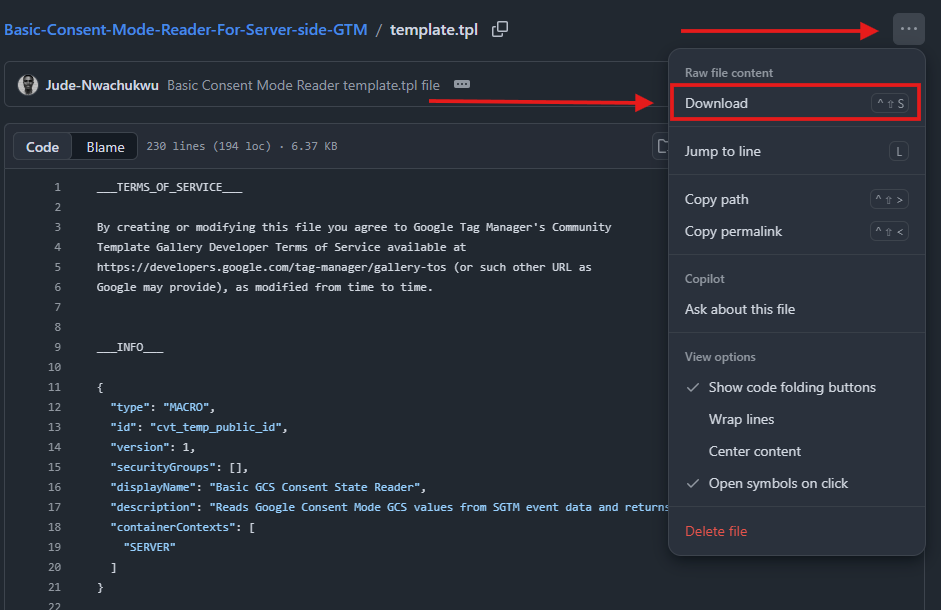
At the time of writing, the template is still awaiting approval in the GTM Community Template Gallery.
Until then, you’ll need to download it directly from the GitHub repository and import the .tpl file manually.
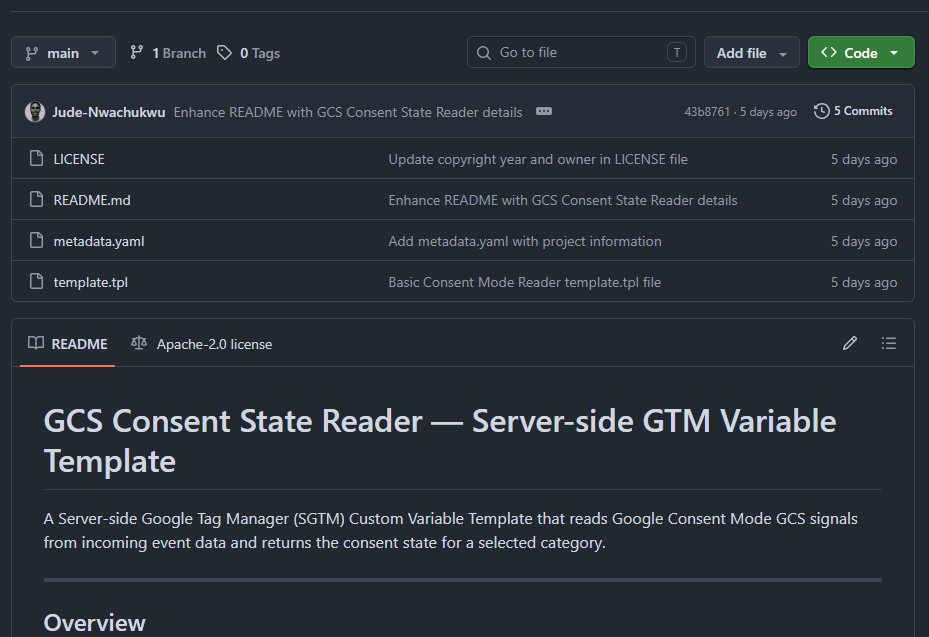
And download it from the template.tpl file.
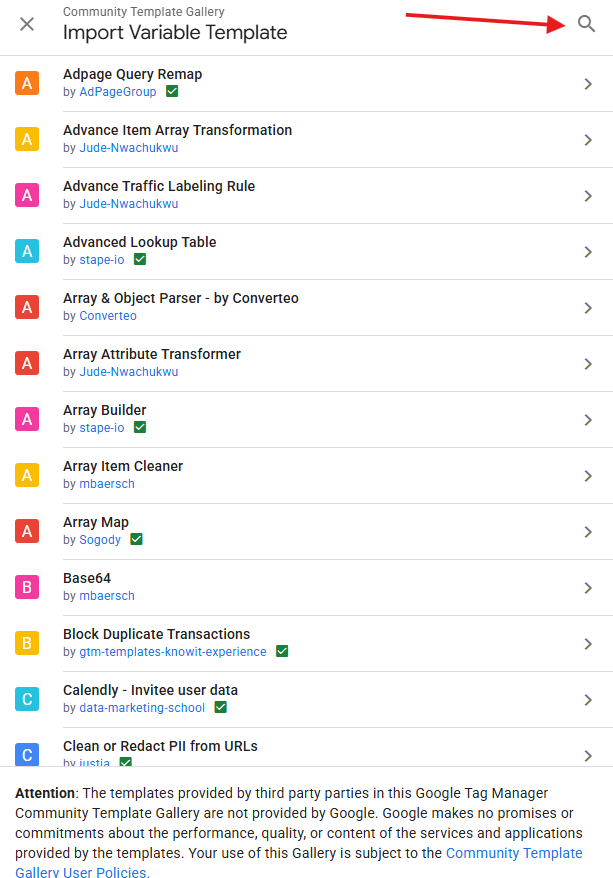
Once the template is approved, you’ll be able to install it directly from the Server-side GTM Template Gallery.

And search for the “Basic GCS Consent State Reader” from the gallery, when it gets listed.
The steps configured below are if you are downloading the template from the GitHub repo.
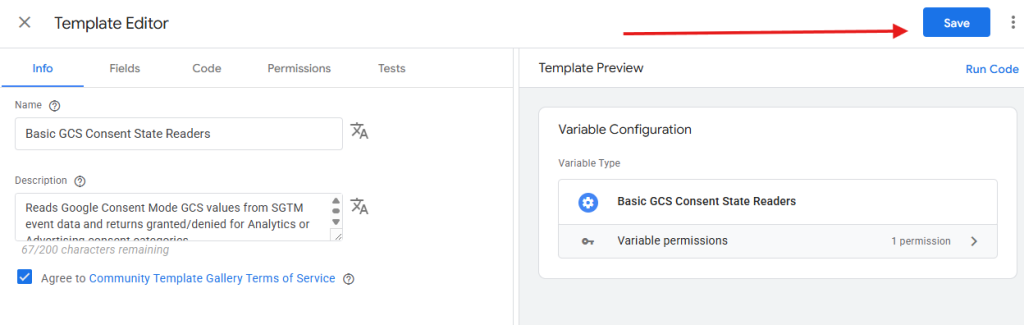
Step 1: Import the Template
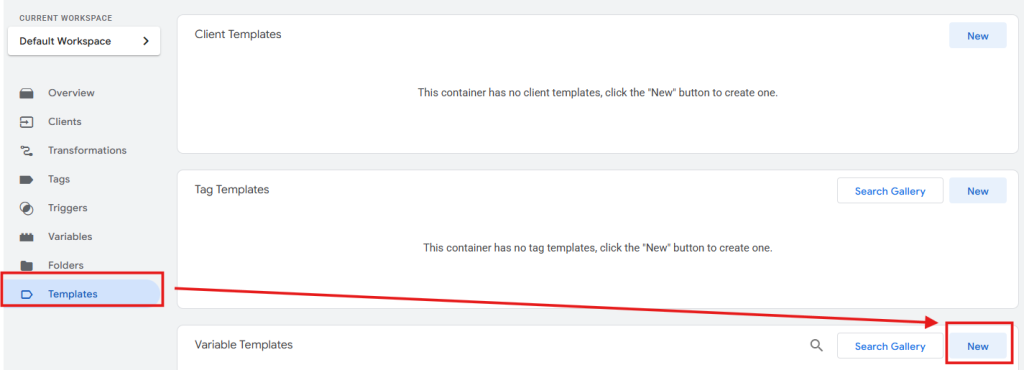
Inside your Server-side GTM container:
- Navigate to Templates
- Under Variable Templates, click New
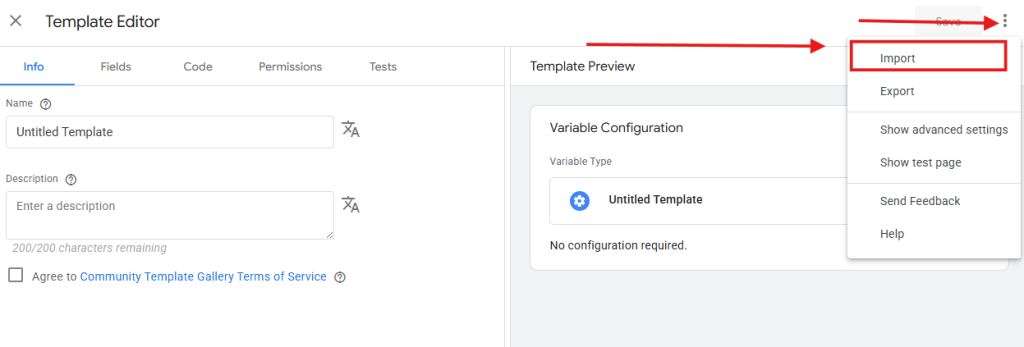
- Open the overflow menu
- Select Import
- Upload the downloaded .tpl file
Step 2: Create the Variable
Next:
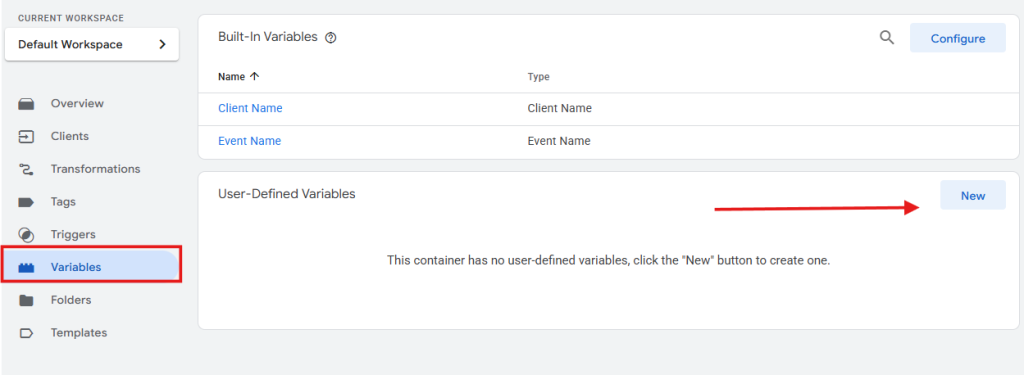
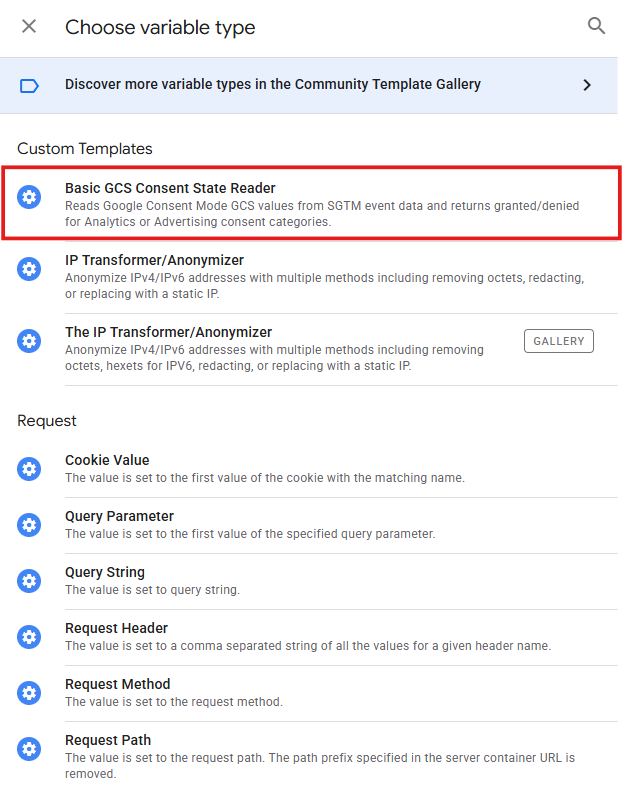
- Navigate to Variables
- Click New
- Select Basic GCS Consent State Reader
Configure:
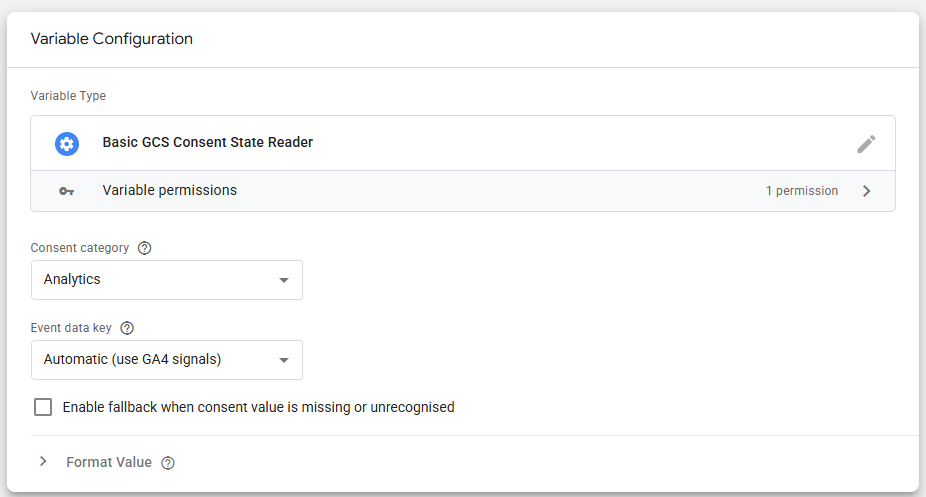
Consent Category
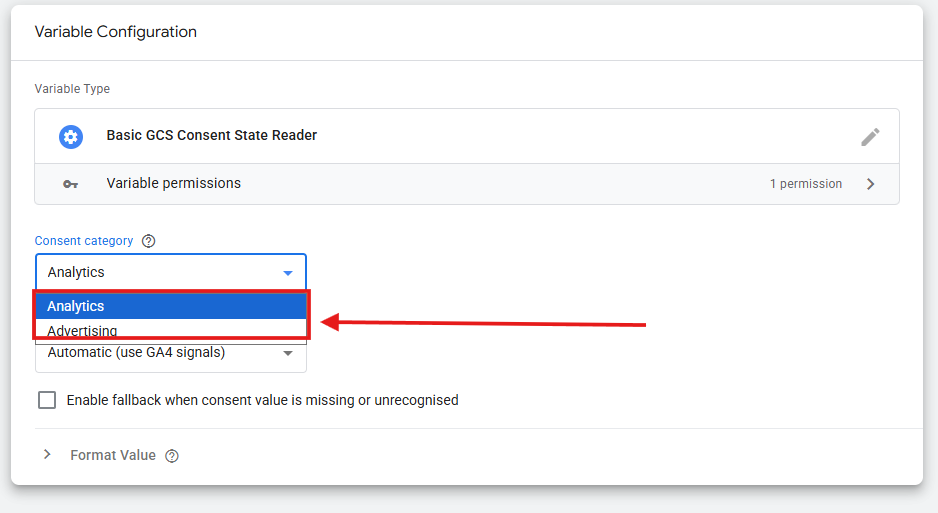
Choose whether the variable should evaluate:
- Analytics Consent
- Advertising Consent
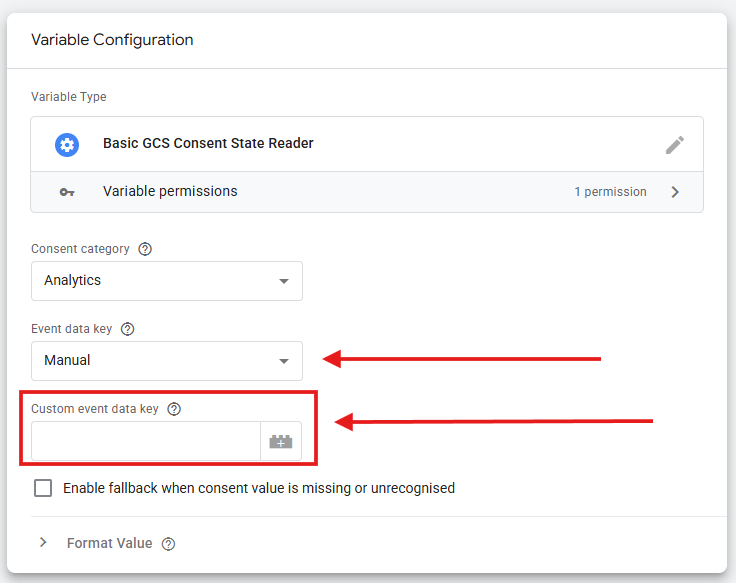
Event Data Key Source
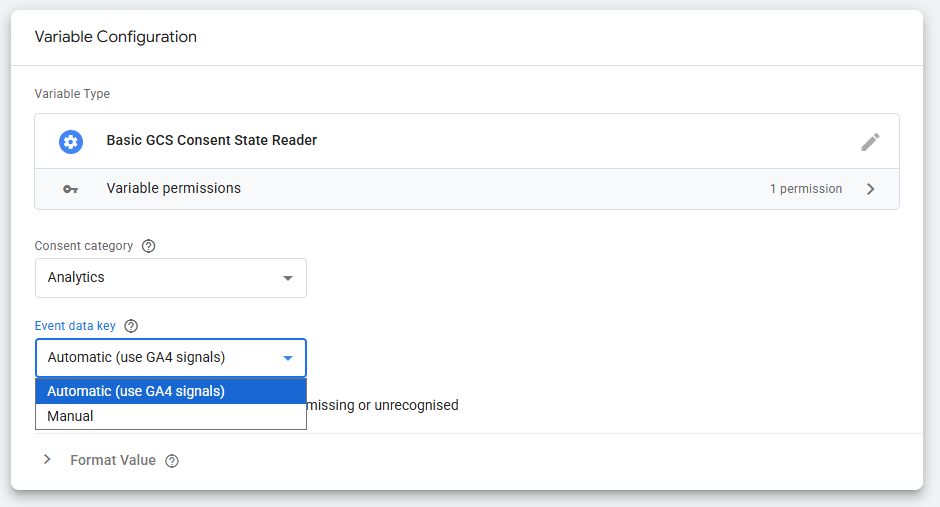
| Option | Description |
| Automatic (GA4) | Reads the standard x-ga-gcs value. Recommended for most setups. |
| Manual | Allows you to specify a custom event data key path. |
Fallback Behaviour
Optionally configure how missing consent values should be handled.
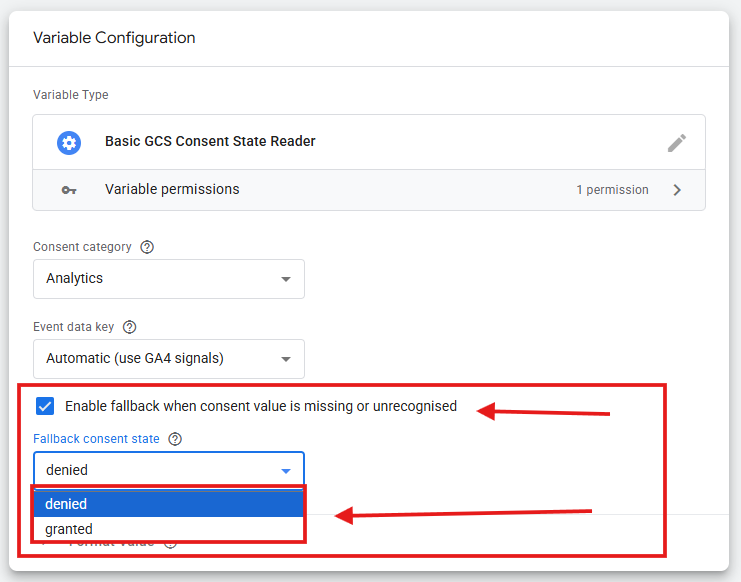
The fallback setting can be useful for maintaining both compliance and measurement continuity, depending on how your server-side tagging setup is configured.
One use case is as a privacy-focused fail-safe. For example, imagine a Google Analytics event is sent from a landing page where a consent banner exists, but the Google Consent Mode implementation was accidentally missed. In that situation, you can configure the fallback value to return “denied”, ensuring consent-dependent tags and integrations don’t process data when consent information is unavailable.
Another scenario, one that I particularly like, is using the fallback setting to prevent unnecessary measurement gaps across different regional websites.
This is common in enterprise organisations that operate multiple regional properties, such as:
- example.com/us
- example.com/uk
- example.com/it
- example.com/es
In some cases, the business may choose to implement a consent banner and Google Consent Mode only on websites that target EEA visitors, whether for compliance, budget, or other internal business reasons.
If all of these regional websites send data through the same Server-side GTM infrastructure, requests from non-EEA sites may not contain a GCS value at all. Without a fallback configuration, those events could be treated as undefined, potentially affecting server-side data collection and measurement.
In these situations, the fallback option in the Basic GCS Consent State Reader template can be configured to return “granted”, helping ensure tracking continues to work as expected for websites where Consent Mode is intentionally not implemented.
Practical Use Cases
How can you use this template to ensure that your Meta CAPI or other non-Google conversion APIs remain compliant? The process can be done as follows.
Consent-Based Tag Firing
One of the most common use cases is controlling whether tags are allowed to execute.
Example trigger condition:
{{GCS - Analytics Consent}} equals granted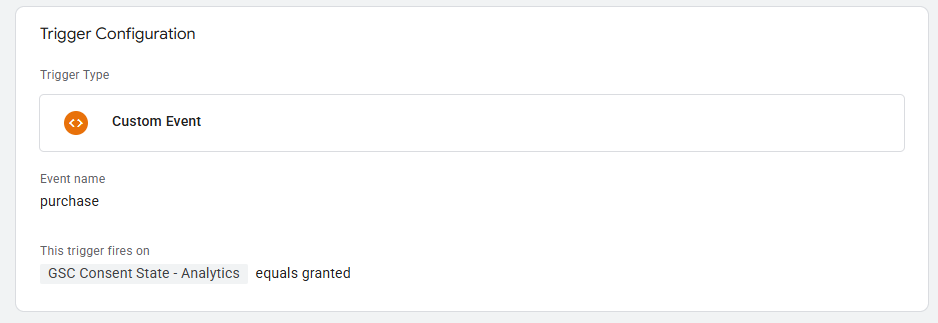
This ensures analytics tags only fire when analytics consent has been granted.
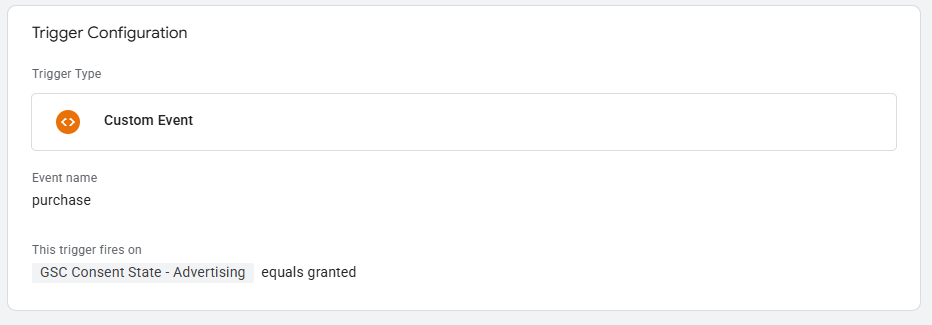
Blocking Advertising Requests
You can also stop advertising-related requests when ad consent is denied.
This is particularly useful for:
- Meta Conversions API
- TikTok Events API
- Reddit Conversion API
- Pinterest Conversion API
- LinkedIn Conversions API
Passing Consent State to Vendors
Many vendors now expect consent information to be included in server-side requests.
The variable can be used directly within request payloads or field mappings.
Example:
{

"analytics_consent": "granted"

}
Building Consent-Aware Data Pipelines
For organisations building privacy-focused measurement architectures, centralising consent handling within Server-side GTM creates a much cleaner system.
Instead of maintaining consent logic across multiple tags and integrations, consent can be evaluated once and reused throughout the entire pipeline.
Step 3: Test in Preview Mode
Use Server-side GTM Preview mode to inspect incoming events.
The variable should return:
- granted
- denied
- Your configured fallback value
depending on the incoming GCS signal.

Recommended Test Scenarios
| GCS Value | Category | Expected Result |
| G111 | Analytics | granted |
| G111 | Advertising | granted |
| G100 | Analytics | denied |
| G101 | Analytics | granted |
| G110 | Advertising | granted |
You should also test:
- Missing GCS values
- Invalid strings
- Lowercase values (for example, g111) if your team is passing it from a custom source.
- Non-GA4 event sources
Troubleshooting Issues
You should use the following tips to diagnose and resolve common Consent Mode issues in your server-side tagging setup when working with the Basic Consent Mode Reader custom template for sGTM.
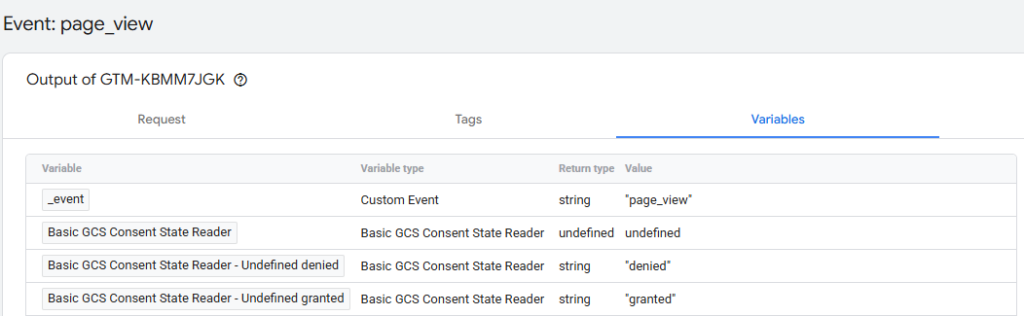
The Variable Always Returns Undefined
This usually indicates that the incoming event doesn’t contain a valid GCS value.
Open Preview Mode and inspect the event data.
Verify that:
x-ga-gcsexists.
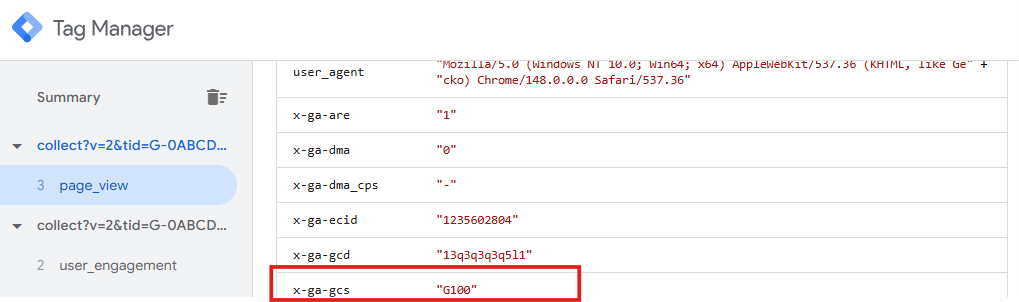
If it doesn’t, confirm that:
- Consent Mode is enabled client-side
- GA4 is sending consent signals
- Requests are reaching the server container correctly
The Wrong Consent State Is Returned
Check which consent category the variable instance is configured to evaluate.
Remember:
- Advertising consent and Analytics consent occupy different positions within the GCS string.
- Each variable instance evaluates only one category.
Some Events Work While Others Don’t
Not every incoming request contains Consent Mode signals.
This commonly occurs with:
- non-GA4 schema similar requests
- Custom event sources
- Server-generated events hits
- Bypassed consent flows
In these situations, fallback handling helps maintain predictable behaviour.
Final Thoughts
Consent-aware server-side measurement is quickly becoming a standard requirement rather than a nice-to-have feature.
Google already provides the consent information you need through the GCS parameter, but repeatedly parsing those values across tags and vendor integrations creates unnecessary complexity.
The Basic GCS Consent State Reader simplifies that process by providing a reusable Server-side GTM variable that’s easy to configure, easy to test, and easy to maintain.
If you regularly work with:
- Server-side GTM
- GA4
- Google Consent Mode
- Server-side event forwarding
this template can help keep your consent logic cleaner and your implementations more maintainable.
Need Help With Measurement or Server-side Tagging?
If you need help with Server-side GTM, analytics implementation, measurement strategy, or privacy-focused data collection, I’d be happy to discuss your requirements.
You can get in touch through the DumbData contact page
You may also find these resources useful:
Until next time, happy tagging—and happy measuring.