
Microsoft Clarity is giving us a much better look at what happens before someone arrives on our website from an AI experience.
That matters because the way people discover content is changing.
Someone might search Google for your content, scan a few results, click through, and browse a website. But with AI search and assistants, the journey can look very different. A user may ask a question, an AI system may retrieve information from several websites, and the user may get most of what they need before deciding whether to visit any of those websites.
And that shift won’t necessarily look the same across industries.
That’s why I’ve been spending more time looking at the AI Visibility data in Microsoft Clarity, particularly the Citations report.
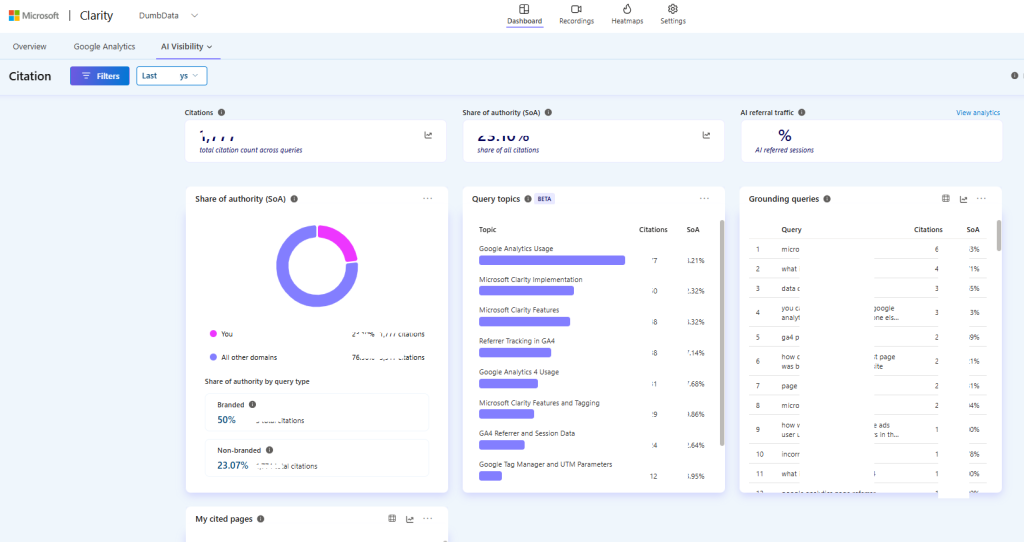
There is a lot of useful information in the report.
But if you’re looking at a large dataset, simply staring at the dashboard isn’t going to get you very far.
The filter is where things get interesting.
And there are a few details about how these filters behave that are easy to miss.
This article is about those details.
Note: I’m not covering how to set up Microsoft Clarity’s AI Visibility report here. I’m focusing specifically on how I use the filters in the Citations report and on some quirks I’ve noticed while working with the data.
Why filtering matters in the AI Visibility report
At the top level, the Citations report can tell you things like:
- How many times your pages were cited
- Your Share of Authority (SOA)
- AI referral traffic
- Which queries are associated with your citations
- Which topics those queries fall into
- Which pages are being cited
That’s useful.
But the real value starts when you move from:
“How visible are we?”
to:
“Visible for what, through which queries, and on which pages?”
That’s where filtering becomes useful.
Instead of looking at everything Clarity has collected, you can narrow the report to a specific query type, query, or cited page.
And once you do that, you can start finding patterns that are difficult to see from the high-level numbers alone.
AI Visibility Filters
When you click on the “Filters” element, it opens the “Filtering” modal, which presents you with the following filtering options in your AI visibility report citation dashboard.
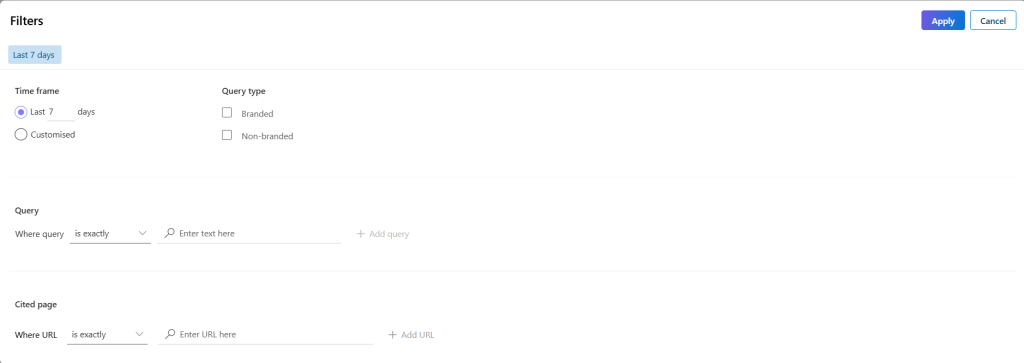
1. Query Type: Branded vs. non-branded AI queries
The first filter I find useful is Query Type.
This lets you narrow the report down to either branded or non-branded queries.
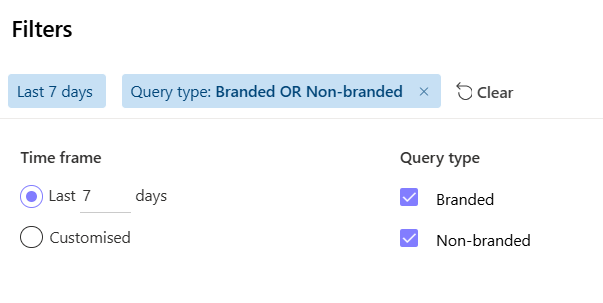
This distinction is important because your AI visibility can look very different depending on whether people are already looking for your brand or whether AI systems are surfacing your content while answering a broader question.
For example, filtering for branded queries can help you understand:
- What questions people are asking that include your brand
- Which pages are being cited for those queries
- Which topics are associated with your brand
- How much authority you’re receiving from branded activity
Switching to non-branded queries gives you a different view.
Now you’re looking at situations where your content is being surfaced without the query necessarily being about your brand.
That can be much more interesting from a content discovery perspective.
You may discover that a page you thought was primarily targeting one topic is actually being retrieved for a completely different group of questions.
And that’s one of the things I like about this report.
You aren’t only looking at the keywords you intended to target.
You’re getting clues about the questions AI systems are actually retrieving your content for.
2. Query: The filter has a few important quirks
The Query filter is probably the one you’ll use most if you’re trying to investigate specific AI visibility patterns.
It lets you narrow the report to the grounding queries associated with your content.
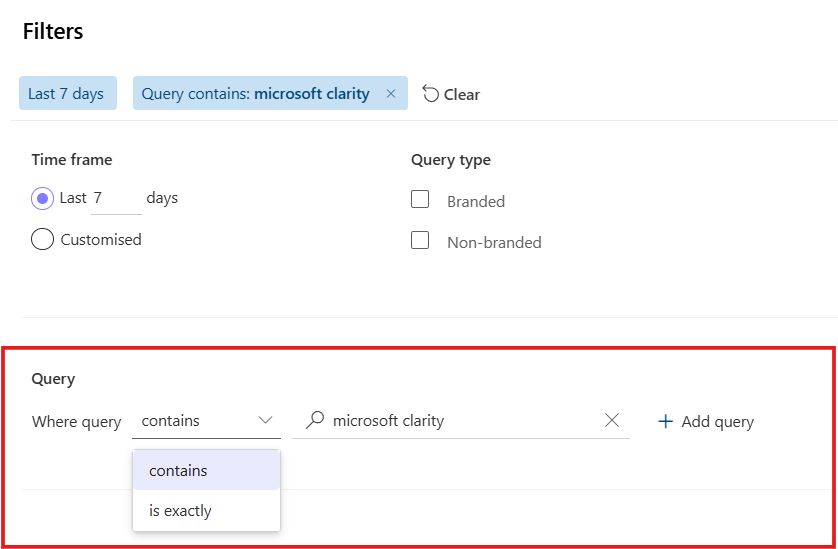
Let’s say you’re investigating queries around “data analytics.”
You can use the query filter to narrow the report to the relevant grounding queries and then look at the pages, topics, and authority associated with them.
But there’s an important detail here:
AND really means AND
You can add multiple query conditions using AND.
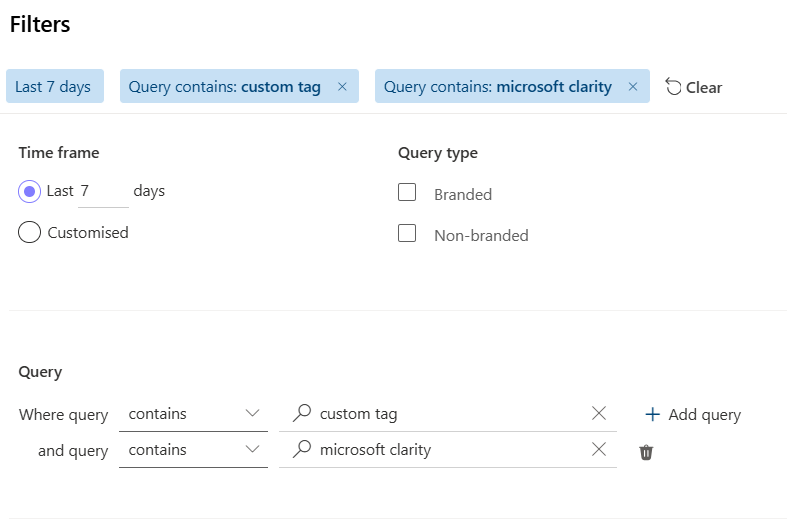
That means Clarity is looking for grounding queries that satisfy both conditions.
It isn’t an OR condition where Clarity shows anything matching either query.
So if you filter for:
- Query A
- AND
- Query B
the grounding query needs to contain both conditions for it to appear.
This is worth remembering because you can otherwise end up wondering why adding another condition suddenly makes your results disappear.
The order of the conditions doesn’t change that basic logic.
Don’t assume the Query filter works like Google Search Console
Here’s one of the more important things I’ve noticed.
If you’re used to filtering queries in Google Search Console, it’s easy to assume that the Clarity filter behaves similarly.
It doesn’t.
In particular, don’t assume the filter will automatically account for variations such as pluralization.
For example, suppose you filter for a query containing:
“custom tag”
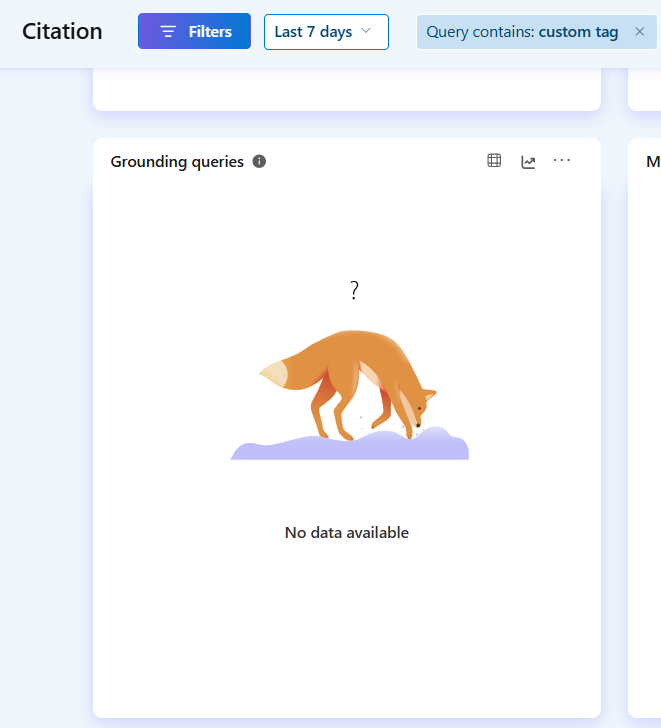
You might expect that to also return a grounding query containing:
“custom tags”
It doesn’t.
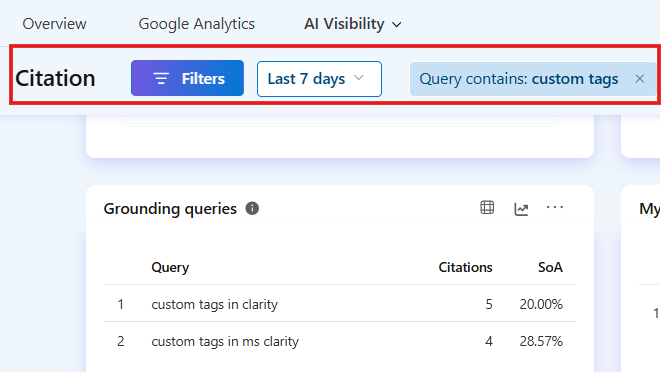
The additional s matters.
The filter is looking for the text you entered rather than treating the two words as equivalent variations.
The same thing applies to incomplete words.
If you’re looking for queries around:
Data
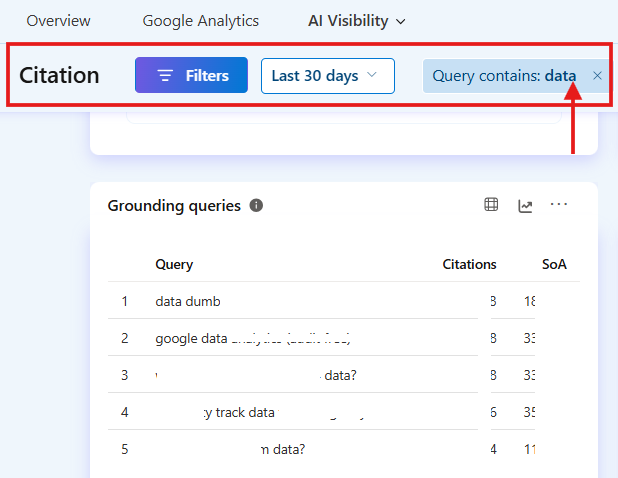
and you enter:
Dat
you may get no results.
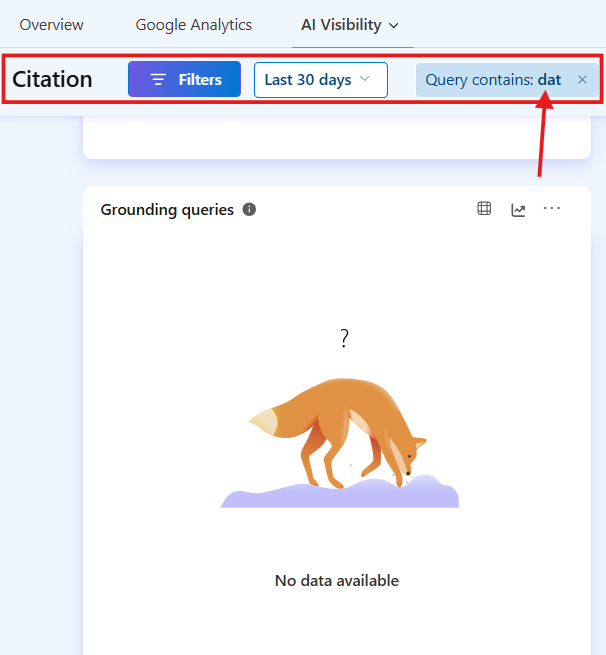
So when you’re using contains, don’t think of it as a fuzzy search.
Use the spelling you actually expect to appear in the grounding query.
This is one of those small things that can make you think there’s no data when there actually is.
3. Cited Page: Filter AI visibility down to specific URLs
The other filter I find particularly useful is Cited Page.
Instead of starting with a query and asking which pages were cited, you can start with a page and ask:
“Which AI queries are causing this page to be surfaced?”
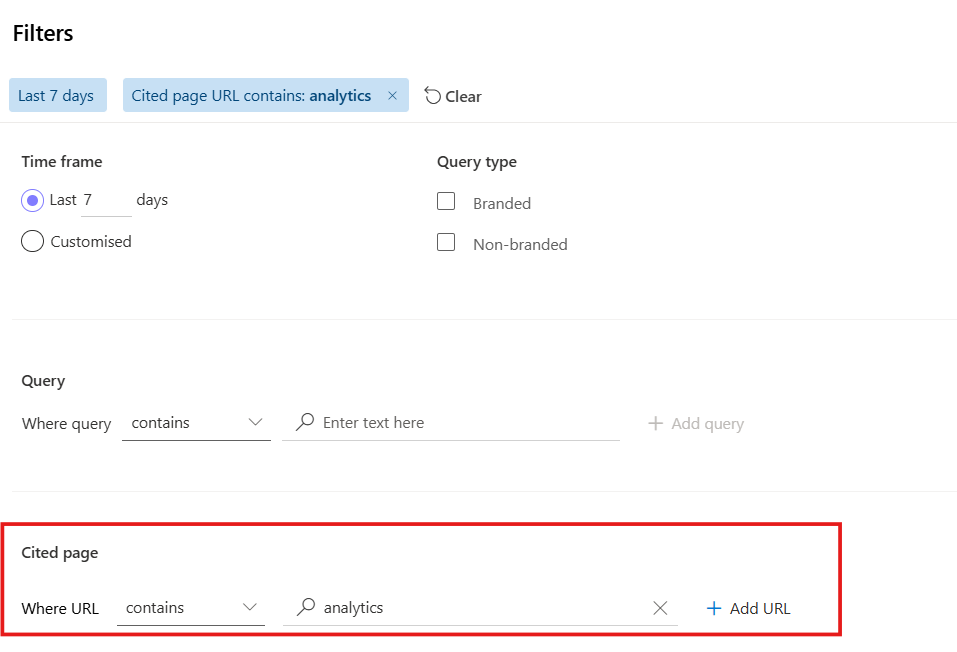
This is particularly useful when you’re auditing a specific article, landing page, category, or group of URLs.
Once you filter by a cited page, you can investigate:
- The queries associated with that page
- The topics connected to those queries
- How the page is contributing to your AI visibility
- The types of questions for which the page is being retrieved
This can reveal something surprisingly useful.
A page may have been created around one specific keyword or topic, but the AI visibility data can show that it’s being retrieved for questions you weren’t necessarily targeting.
That’s a content insight you wouldn’t get from simply looking at traditional rankings.
The Cited Page filter also gives you more filtering options and operators than the query filter.
You can use:
- Starts with
- Ends with
- Contains
- Is exactly
- Matches regex
That makes it possible to get more granular with URL filtering.
For example, if you want to look at an entire section of your website, starts with can be useful for filtering a common URL path.
If you’re investigating one exact page, is exactly gives you a tighter view.
And if you have a more complicated URL pattern to investigate, matches regex gives you another option.
When working with multiple URLs, please note that you can filter multiple cited pages.
Another useful detail is that you aren’t limited to one URL.
You can add multiple URLs to the cited-page filtering.
And just like the query filter, you can apply AND conditions.
The “contains” condition can be useful when you’re comparing a small group of pages that cover a similar subject with similar page URL structure.
For example, you might want to investigate several articles within the same content cluster.
Instead of opening each page individually and trying to piece together the data, you can narrow the report around the pages you’re interested in and look at the combined citation activity.
That gives you a much better way to investigate content groups rather than isolated URLs.
However, you need to understand that the “AND” means that all URLs entered must be found in that single cited page URL, as it doesn’t mean OR.
Here’s another URL-filtering detail worth knowing
The same issue around incomplete text applies when you’re using contains for cited pages.
If the URL contains:
microsoft-clarity
don’t assume that searching for:
microsoft-clarit
will return it.
The missing y matters.
Again, this isn’t behaving like a fuzzy URL search.
If the text you’re filtering for doesn’t match what appears in the URL, you can end up with an empty result.
So if you know the URL you’re looking for, copy the relevant path carefully.
It sounds trivial.
But when you’re investigating a report and suddenly see zero results, these little details matter.
From high-level metrics to actual questions
The reason I think these filters are more useful than they initially appear is that they let you move through the AI Visibility report at different levels.
You can start with the big numbers:
Page Citations
How many times pages from your site were cited.
Share of Authority
Your share of total page citations across the query volume being analysed.
In simple terms, it’s your citations divided by the total citations from all domains in the query set.
AI Referral Traffic
The percentage of your site sessions referred by AI assistants.
This is calculated from AI-referred sessions divided by total sessions.
One important limitation here is that, for this metric, Clarity only applies Date and URL filters.
Then you can move deeper.
You can investigate:
- Branded vs. non-branded authority
- Query topics
- Grounding queries
- Cited pages
That’s the part I find most useful.
The report stops being just a visibility dashboard and starts becoming an investigation tool.
A simple workflow I would use
If I were investigating a site’s AI visibility, I’d start broad and progressively narrow the data.
Start with Query Type
Compare branded and non-branded visibility.
Ask:
Are we mostly being surfaced because people already know us and want to get our thoughts/opinions on certain topics or learn more about our offerings, or are AI systems connecting our content with broader questions?
Move into the Query filter
Pick an area you’re interested in and inspect the grounding queries.
Look for:
- Repeated questions
- Unexpected query patterns
- Related questions you aren’t targeting
- Queries where your content appears consistently
Then filter by Cited Page
Take an interesting page and work backwards.
Ask:
What questions are causing AI systems to retrieve this page? You can start with your top landing pages with a high or low conversion rate or engagement rate.
Then compare that with what the page was originally created to answer.
That comparison can be very revealing.
The interesting part isn’t just being cited
I think it’s easy to get distracted by the citation count.
“Great, we’re getting 500 citations.”
Okay.
- But what are those citations actually about?
- Are they branded queries?
- Are they non-branded questions?
- Which pages are being used?
- Which topics are driving the activity?
- Are there pages being cited for topics you didn’t expect?
- And are those citations translating into AI-referred sessions?
Those are much more useful questions.
A high citation count by itself doesn’t tell you what AI systems associate your brand with.
The filters help you get closer to that answer.
What I’d pay attention to
If you’re already using the Microsoft Clarity AI Visibility Citations report, I wouldn’t just check it for the headline numbers.
I’d spend some time filtering it.
In particular, I’d look for three things:
1. Unexpected grounding queries
These can show you how AI systems are interpreting and connecting your content beyond your original keyword strategy.
2. Pages with interesting citation patterns
A page being cited for several related questions could tell you something about the breadth or usefulness of that content.
3. Differences between branded and non-branded visibility
This is probably one of the clearest ways to separate existing brand demand from broader AI discovery.
And importantly, don’t assume that an empty filter result means there is no relevant data.
Sometimes it simply means the filter condition doesn’t match the underlying query or URL exactly.
That’s an important distinction.
Final thought
AI visibility reporting is still relatively in its early/mid form, so we’re all figuring out what signals actually matter.
That’s why I think the ability to drill into the data is more valuable than simply having another dashboard full of numbers.
Microsoft Clarity’s Citations report gives you the high-level view.
The filters let you interrogate it.
And some of the most useful insights can come from those smaller details:
Which queries? Which pages? Which topics? Branded or non-branded?
Once you start asking those questions, the report becomes much more useful for content analysis.
And honestly, some of the filter behaviour I’ve covered here isn’t the kind of thing you’ll necessarily learn from reading a feature announcement or documentation page.
You find it by actually working with the report, trying different filters, and figuring out why a result did—or didn’t—appear.
That’s the part I wanted to document here.
Need help with your analytics or measurement? Please reach out using the form or contact details on the DumbData contact us page.
If you’re looking for more Microsoft Clarity resources from the DumbData team, check out these guides:
- [4] Ways to Measure Site Search in Microsoft Clarity + How to Use the Data
- How to Get the Microsoft Clarity Session Recording Playback URL (With & Without GTM)
- How to Filter by UTMs and Exclusive GA4 UTMs in Microsoft Clarity
- Funnels in Microsoft Clarity: Everything You Should Know + Useful Tips
- Microsoft Clarity for SaaS: How to Measure Onboarding and Activation
We hope these resources help you get more value from Microsoft Clarity and turn your data into actionable insights.
Until then, happy getting clarity!